"Best" depends entirely on what you are editing. A quick crop and a magazine cover are not the same job, and no single free app is right for both. Here is an honest guide to the best free image editor for Mac, matched to what you actually need to do.
Short version: for quick everyday edits (crop, resize, annotate, draw), the free Paint Vlix is fast and native. For heavy, layered photo work, GIMP is the most capable free option. And Preview is already on your Mac for the no-install basics. 
The best free photo editing apps for Mac
Every option below is genuinely free. They differ in what they are for, which matters far more than a feature count.
Fast and simple
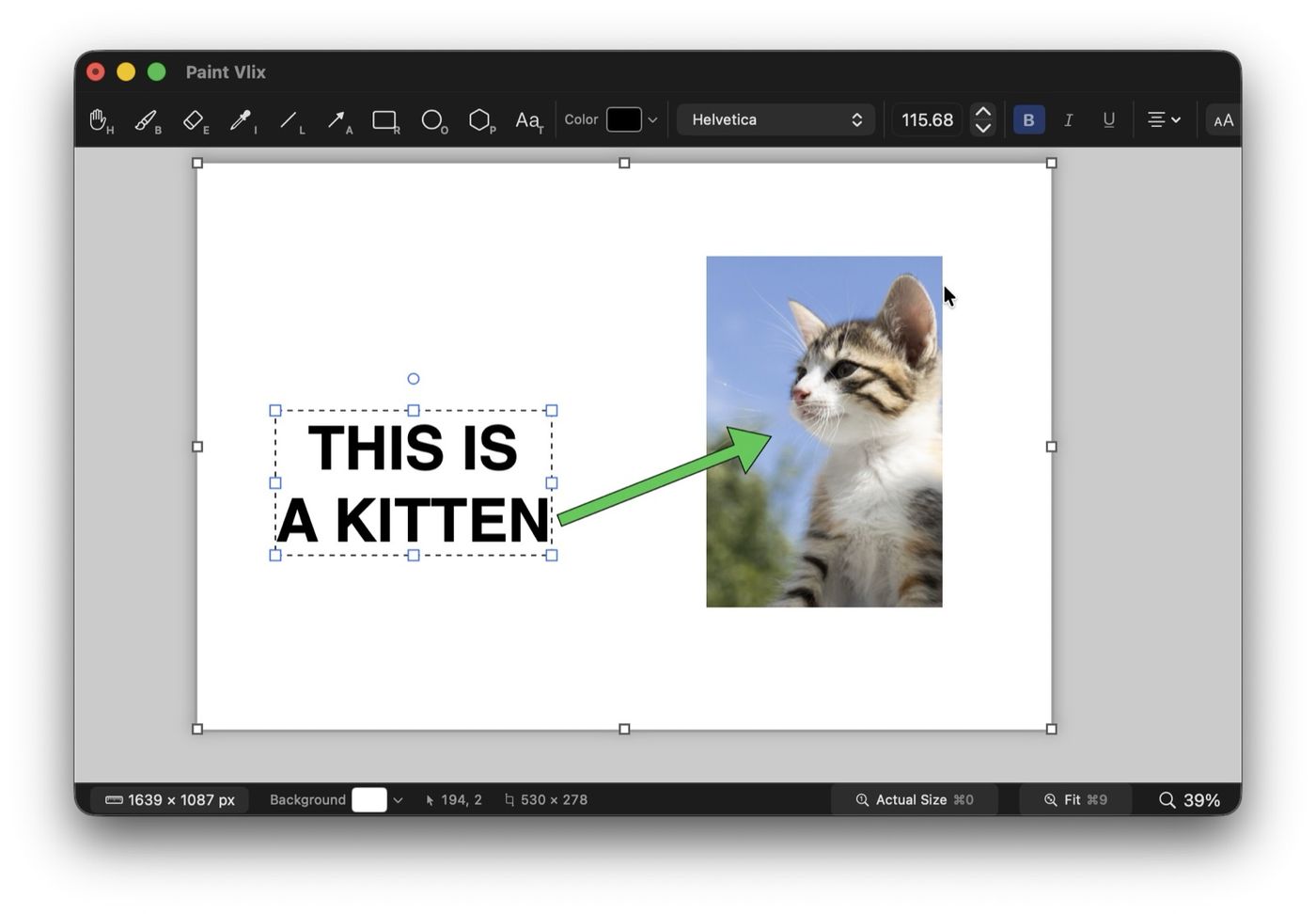
Paint Vlix
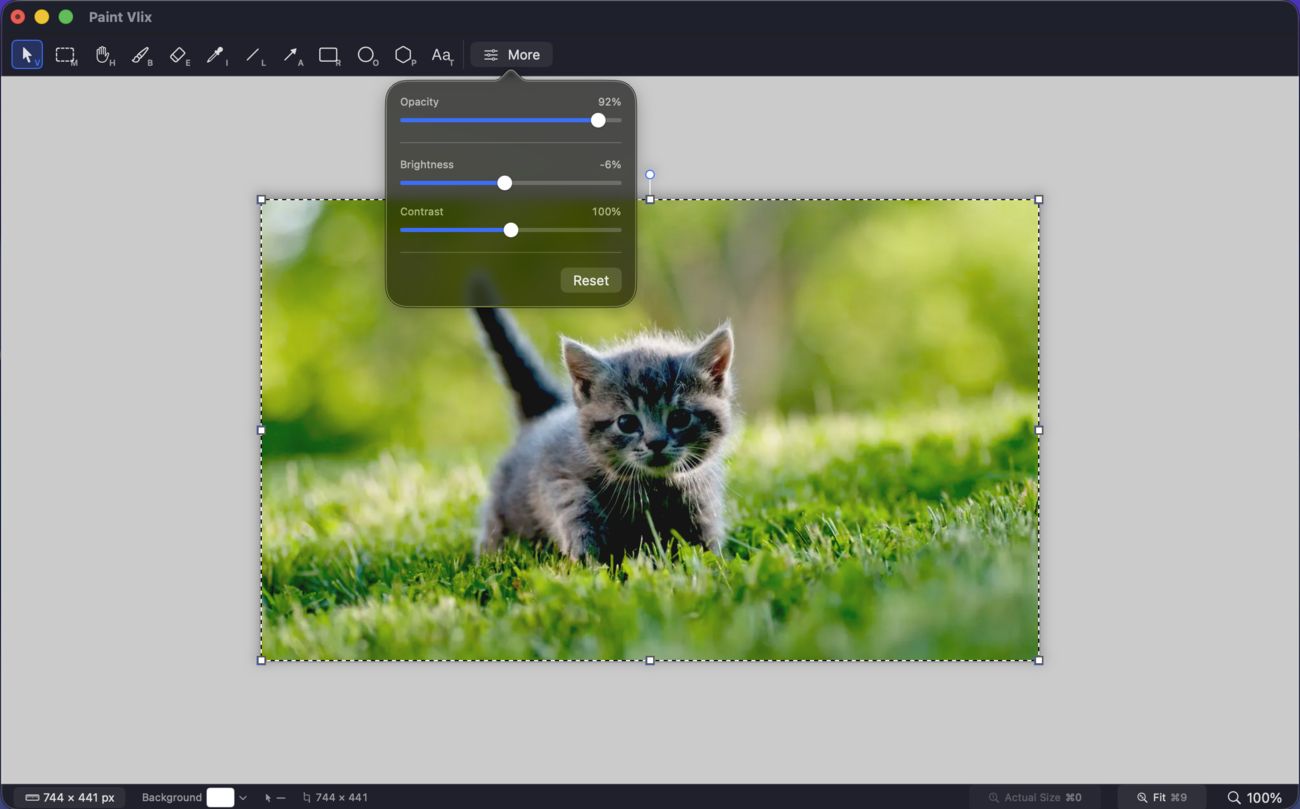
A free, native Mac app for the edits you just want done: crop a screenshot, resize a photo, draw and annotate, adjust brightness and contrast, then export or copy to the clipboard. It is native to macOS so it opens instantly, weighs roughly a megabyte, and has no account or subscription. What sets it apart from Preview is that everything you add stays an editable object, and undo is unlimited. It is not trying to be Photoshop, and that is the point.
Built in
Preview and Photos
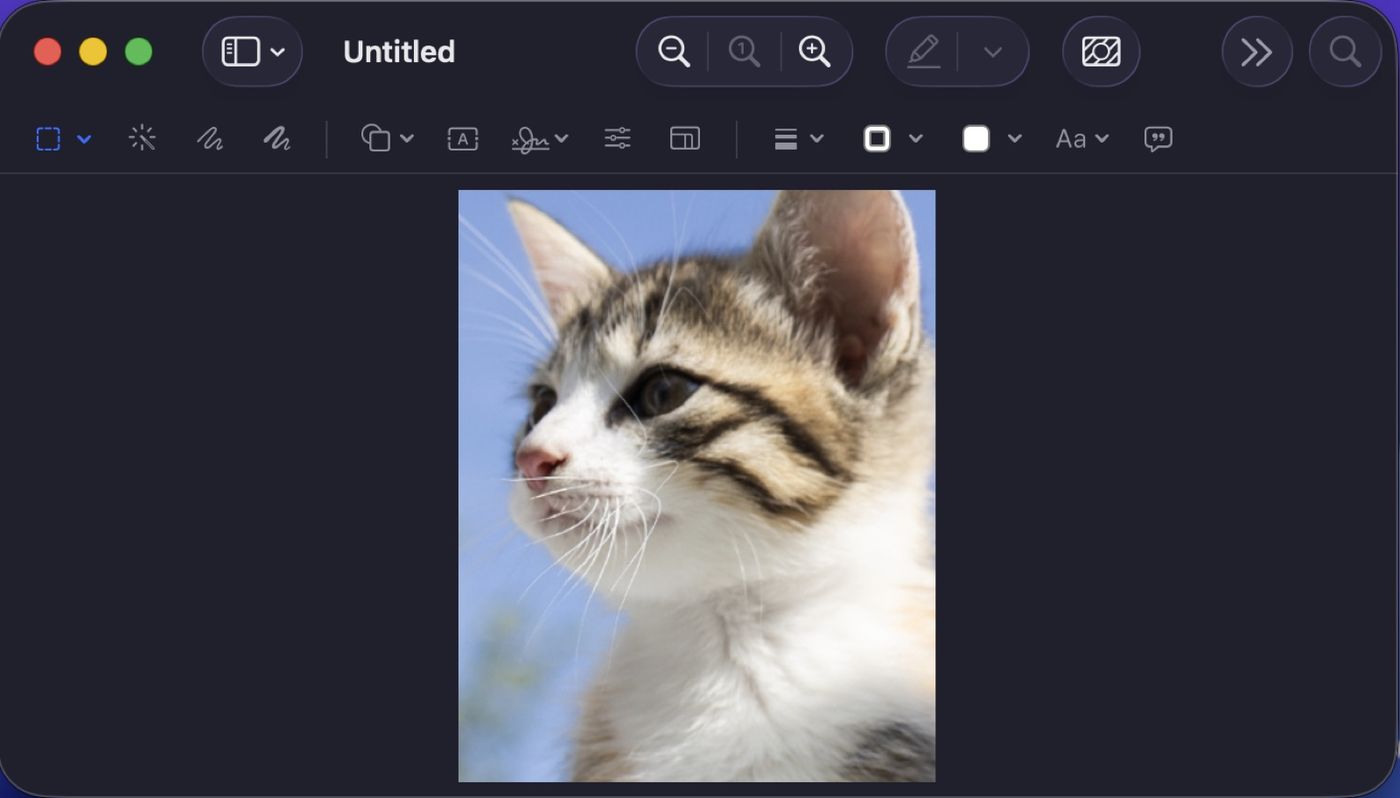
Both ship with macOS. Preview crops, resizes, rotates, adjusts colour, and marks up. The Photos app adds proper exposure and colour adjustments to anything in your library. Between them they cover a surprising amount for zero downloads. The ceiling is low once you want dedicated drawing or editable annotations, but for basics they are always there.
Most powerful
GIMP
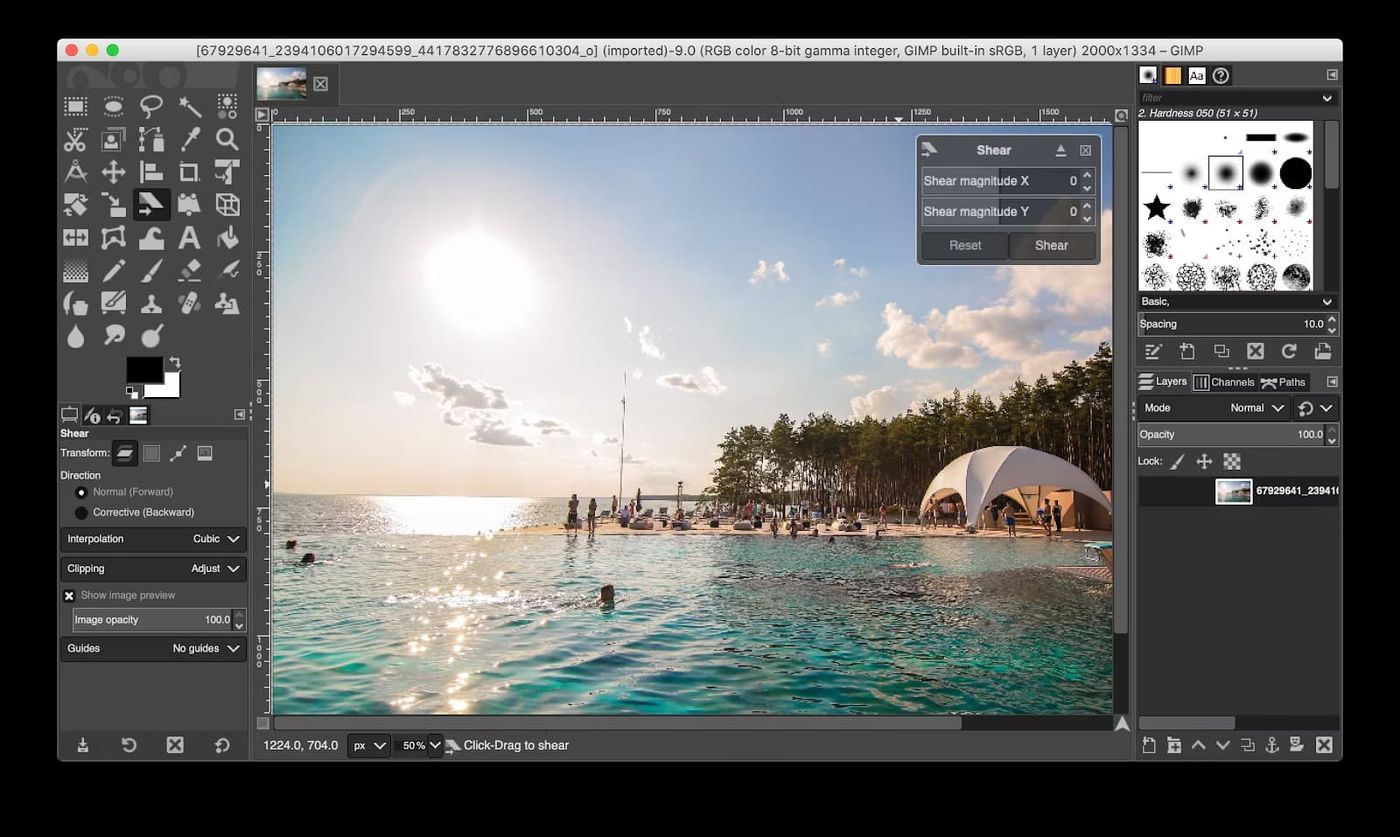
The heavyweight free editor: layers, masks, curves, filters, and plug-ins. If you are compositing, retouching, or doing real graphic design, GIMP is the most capable free tool on the Mac. The trade-off is a big download and a genuine learning curve, so it is overkill for a quick crop.
In the browser
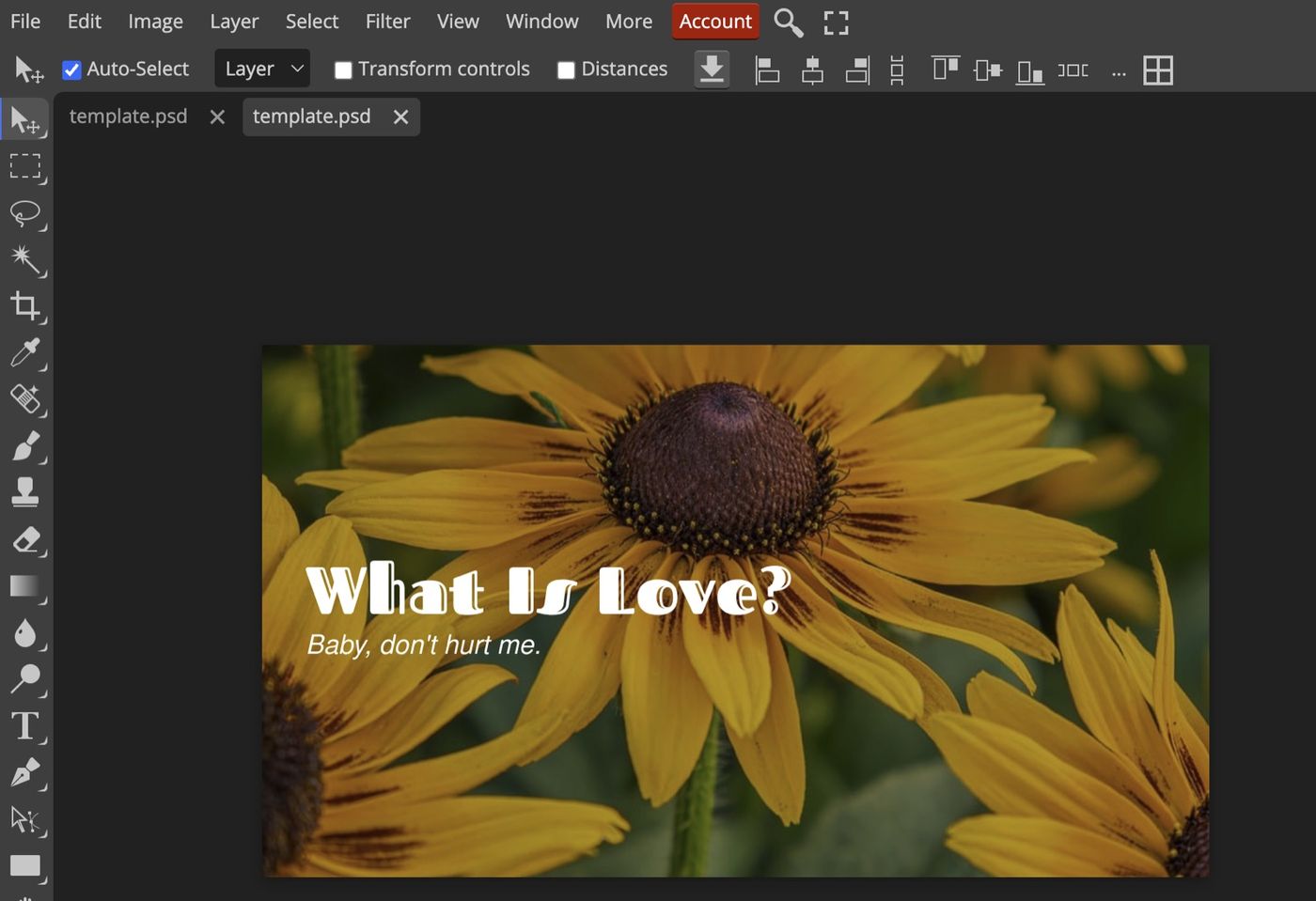
Photopea
A free, browser-based editor, Photopea, that mimics Photoshop closely, right down to reading and writing PSD files. Nothing to install, and impressively powerful for a web app. Because it runs in a tab it is best for occasional use rather than files you touch every day, and it is ad-supported.
For artists
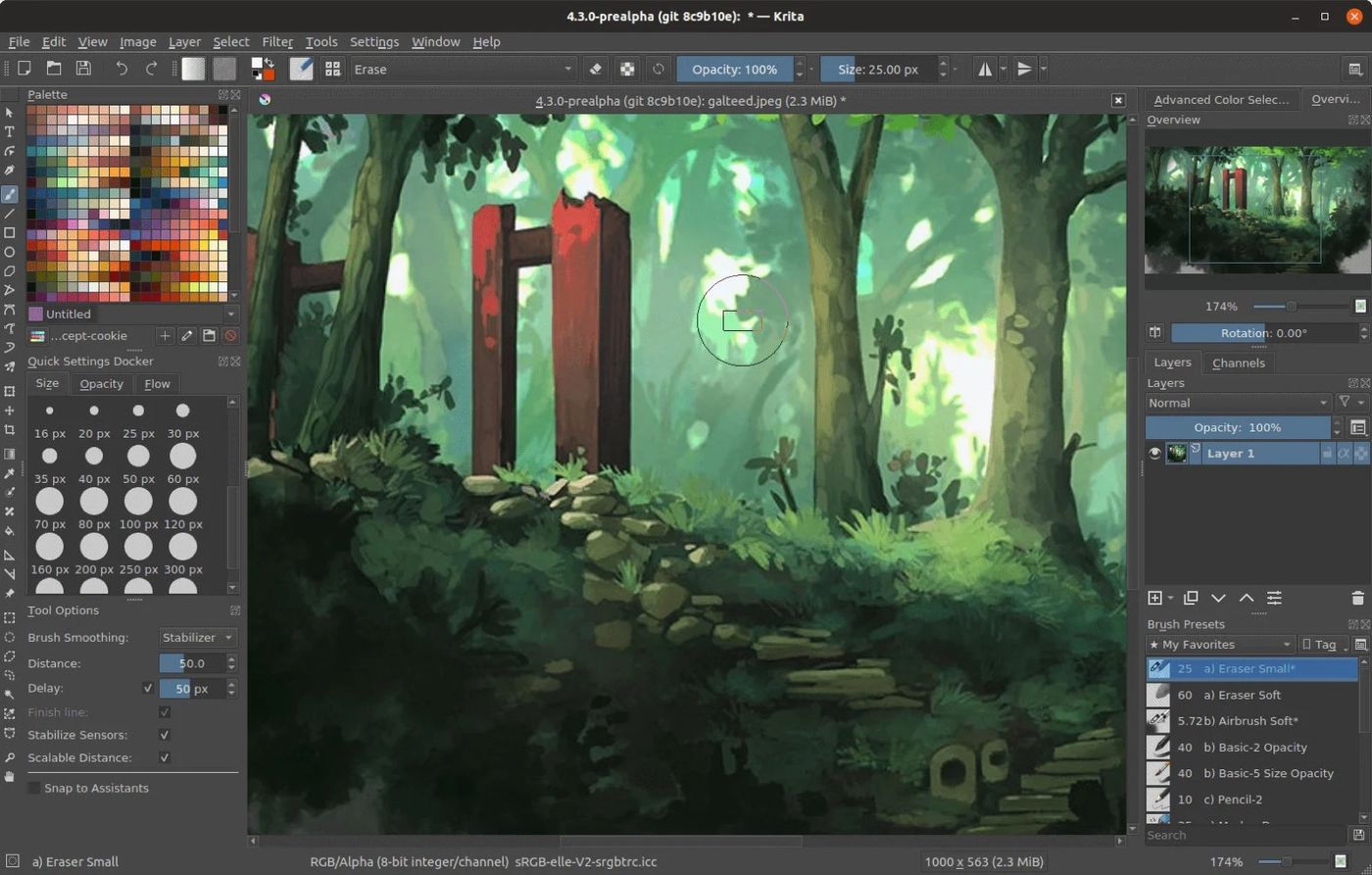
Krita
Free and open source, built for digital painting and illustration with excellent brush engines. If you are drawing artwork rather than editing photos or screenshots, Krita is worth a look. For everyday image edits it is more app than the job needs.
Paint Vlix vs macOS Preview for everyday edits
The two simplest free options are the free Paint Vlix and the Preview app already on your Mac. For the quick, practical edit, here is how they compare.
| What you want to do | Paint Vlix | macOS Preview |
|---|---|---|
| Crop an image | ✔ | ✔ |
| Resize to an exact size | ✔ | ✔ |
| Arrows, boxes & text stay editable | ✔ | Baked in on save |
| Freehand pencil & brush | ✔ | Basic sketch only |
| Brightness, contrast & opacity | ✔ | Basic colour adjust |
| Rotate to any angle | ✔ | 90° steps only |
| Export PNG, JPEG, clipboard, print | ✔ | A few formats |
| Change your mind after reopening | ✔ | Changes are final |
| Opens instantly, native, free | ✔ | ✔ |
So which free image editor should you pick?
- Quick, practical edits every day: Paint Vlix.
- Nothing to install, just the basics: Preview and Photos.
- Serious layered editing and design: GIMP.
- Photoshop-style work in a browser: Photopea.
- Krita is the pick for digital painting and illustration. Krita.