Whether an upload has a size limit or a photo is simply too big to email, resizing on a Mac takes about ten seconds. The quickest way is the free Paint Vlix app, and Preview can do it too. Here is each one.
The quick answer: the simplest way is the free Paint Vlix app: open the photo, set a new width or height, and export. Prefer built-in tools? Open the image in Preview, choose Tools › Adjust Size, keep Scale proportionally ticked, type a new size, and save. 
The easiest way: resize in Paint Vlix (free)
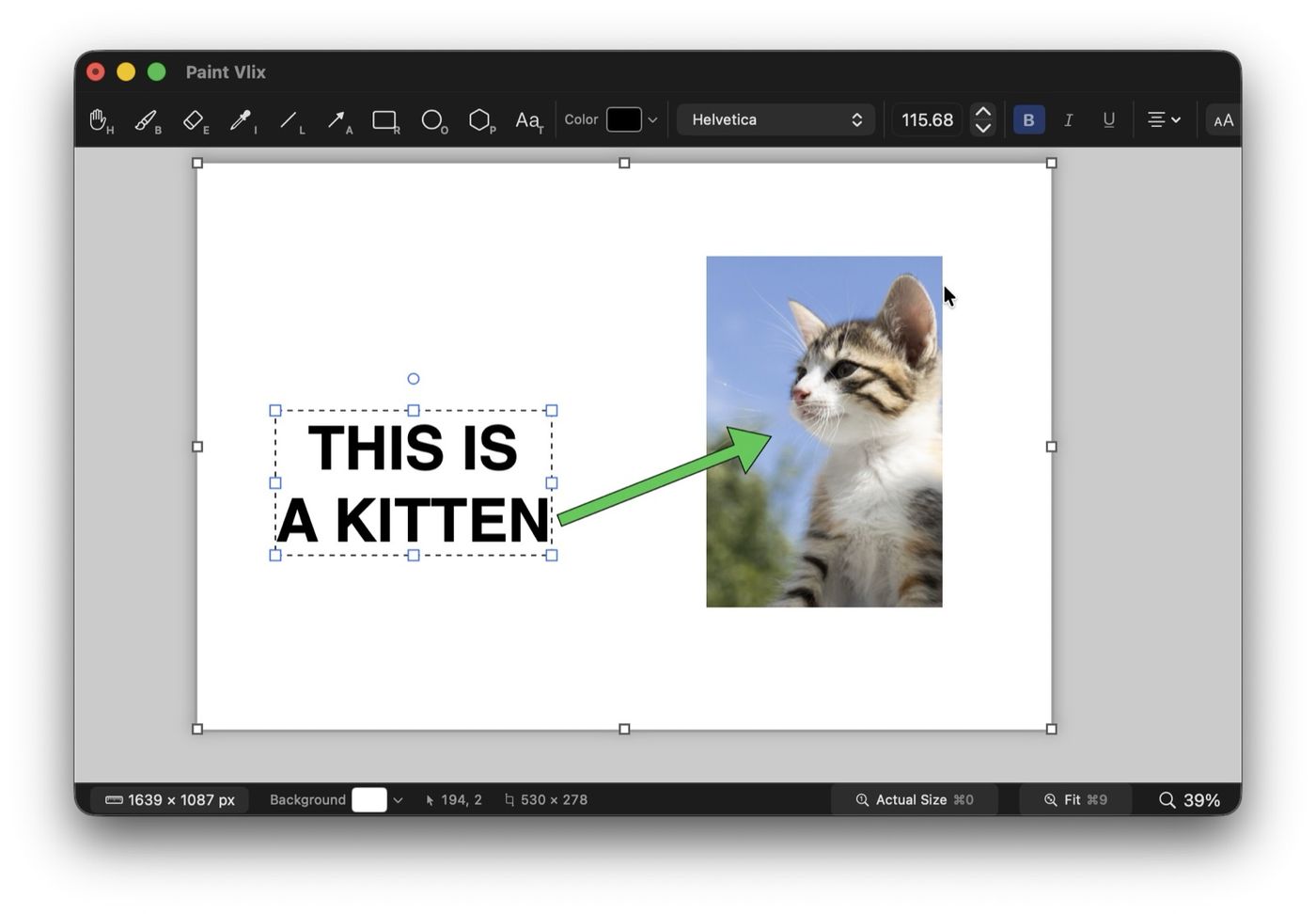
Paint Vlix is a free Mac app built natively in Swift, so it opens instantly. You resize on the actual canvas, see the result, and export, with no dialog full of numbers to decode.
- Open the image in Paint Vlix, or paste it straight from the clipboard.
- Drag a corner handle to scale it on the canvas, or type an exact width and height with the aspect lock on.
- Export as PNG or JPEG with adjustable quality, or copy it to the clipboard.
It is 100% free on the Mac App Store, with no in-app purchases, no subscription, and no account.
How to resize an image on Mac with Preview
If you would rather not install anything, Preview ships with macOS and handles the everyday resize.
- Open the image in Preview (double-click it, or right-click and choose Open With › Preview).
- Go to Tools › Adjust Size.
- Set the unit to pixels or percent.
- Type the new Width or Height. With Scale proportionally on, the other value follows automatically so nothing is stretched.
- Click OK, then press ⌘S to save, or File › Export to keep the original and write a new copy.
The dialog also shows the resulting file size as you type, which is exactly what you want when there is an upload limit to sneak under.
How to resize a photo on Mac by percent
Switch the unit dropdown from pixels to percent and enter a number like 50. The image becomes half its size in each direction. Percent is the quickest option when you do not care about an exact pixel count and just want it noticeably smaller.
How to resize multiple images at once on Mac
Preview can batch this without any extra app:
- Select every image in Finder, then open them together in Preview (right-click, Open With › Preview).
- In Preview's sidebar, press ⌘A to select all of the thumbnails.
- Choose Tools › Adjust Size and set your dimensions once. It applies to the whole selection.
How to resize an image without losing quality
The honest rule: shrinking is safe, enlarging is not. When you make an image smaller, you are throwing pixels away and it stays crisp. When you make it bigger than the original, the software has to invent pixels that were never captured, and the result looks soft no matter which app you use.
- Always start from the largest original you have, not from an already-shrunk copy.
- Keep Scale proportionally (or the aspect lock) on, so the photo is never stretched.
- For photos, export as JPEG and nudge the quality slider; for screenshots and graphics with text, keep PNG.
Why Paint Vlix beats Preview for this
Now you have seen both. Preview can resize, but that is roughly where it stops. Paint Vlix resizes just as easily and then keeps going, so the same free app handles the next thing you were going to do anyway:
- See the resize happen on a canvas as you resize, instead of guessing from numbers in a box.
- Crop and straighten the image in the same window, before or after resizing.
- Add arrows, boxes, and text that stay editable objects, not baked-in pixels.
- Fix the image's brightness, contrast and opacity with live brightness, contrast, and opacity.
- Rotate the image to any angle, not just ninety degrees at a time.
- Export the image anywhere: PNG or JPEG with adjustable quality, copy to the clipboard, or print.
In Preview, most of that is either missing or bakes into the pixels the moment you save. In Paint Vlix nothing is committed until you export, so you can resize, mark up, and change your mind freely.
| What you want to do | Paint Vlix | macOS Preview |
|---|---|---|
| Resize to an exact size | ✔ | ✔ |
| See the result on a canvas as you resize | ✔ | Numbers in a dialog |
| Crop an image | ✔ | ✔ |
| Arrows, boxes & text stay editable | ✔ | Baked in on save |
| Freehand pencil & brush | ✔ | Basic sketch only |
| Brightness, contrast & opacity | ✔ | Basic colour adjust |
| Rotate to any angle | ✔ | 90° steps only |
| Export PNG, JPEG, clipboard, print | ✔ | A few formats |
| Opens instantly, native, free | ✔ | ✔ |
Which method should you use?
- The simplest resize, plus crop, text, or you edit images often: Paint Vlix.
- An exact resize with no install: Preview and Adjust Size.
- For dozens of files at once, use Preview's batch resize. Preview's batch resize.