Paint Vlix
A Simple Paint App for Mac
Sketch, draw, and edit images on a familiar, easy-to-use canvas. Paint Vlix brings the classic paint experience to macOS, with pencils, brushes, shapes, lines, arrows, and rich text. Completely free.

Sketch, draw, and edit images on a familiar, easy-to-use canvas. Paint Vlix brings the classic paint experience to macOS, with pencils, brushes, shapes, lines, arrows, and rich text. Completely free.
Most image editing is not a project. You need to crop a screenshot, circle the thing you are talking about, drop an arrow on it, and send it. That job does not need layers, a workspace, or a subscription, and it certainly does not need a tutorial. It needs an app that opens in about a second and gets out of your way.
Paint Vlix is that app. Open an image and start working immediately. Every mark you make stays an object you can pick back up, so nothing is ever baked in by accident and there is no penalty for changing your mind. When you are done, save over the original, export a PNG, or copy it straight to the clipboard and paste it wherever it was going.
Crop images, add text, cut and paste, and sketch quickly on your Mac
Pencil, brush, lines, arrows, rectangles, ellipses, polygons, and text. All the classic tools you expect, right where you'd look for them.
Every shape, line, and stroke stays selectable. Move, resize, rotate, and restyle anything at any time, with no need to start over.
Pick any color, fill shapes, adjust borders, and set the canvas background. The eyedropper samples any color straight from your canvas.
Open, paste, crop, and resize images. Combine your photos with your own drawings and export as PNG, JPEG, and more.
Unlimited undo and redo for every edit, so you can experiment freely and never worry about making a mistake.
Built natively for macOS and completely free. No subscriptions, no accounts, and no clutter. The whole app is about a megabyte and opens in roughly a second.
Point at the thing you are talking about with a bold arrow, ring it with a rectangle or ellipse, or block something out entirely. Rectangles take an adjustable corner radius, and lines are edited by dragging either end.
Fade any object back with an opacity slider, and push brightness and contrast on an image until it reads properly. Adjustments are live and reversible, so a photo that came out dark is a slider away from usable.
Export to PNG or JPEG with adjustable quality. Copy straight to the clipboard, or print. Save in the native format and every object is still there and still editable when you reopen it.
One window, one toolbar, everything a click away
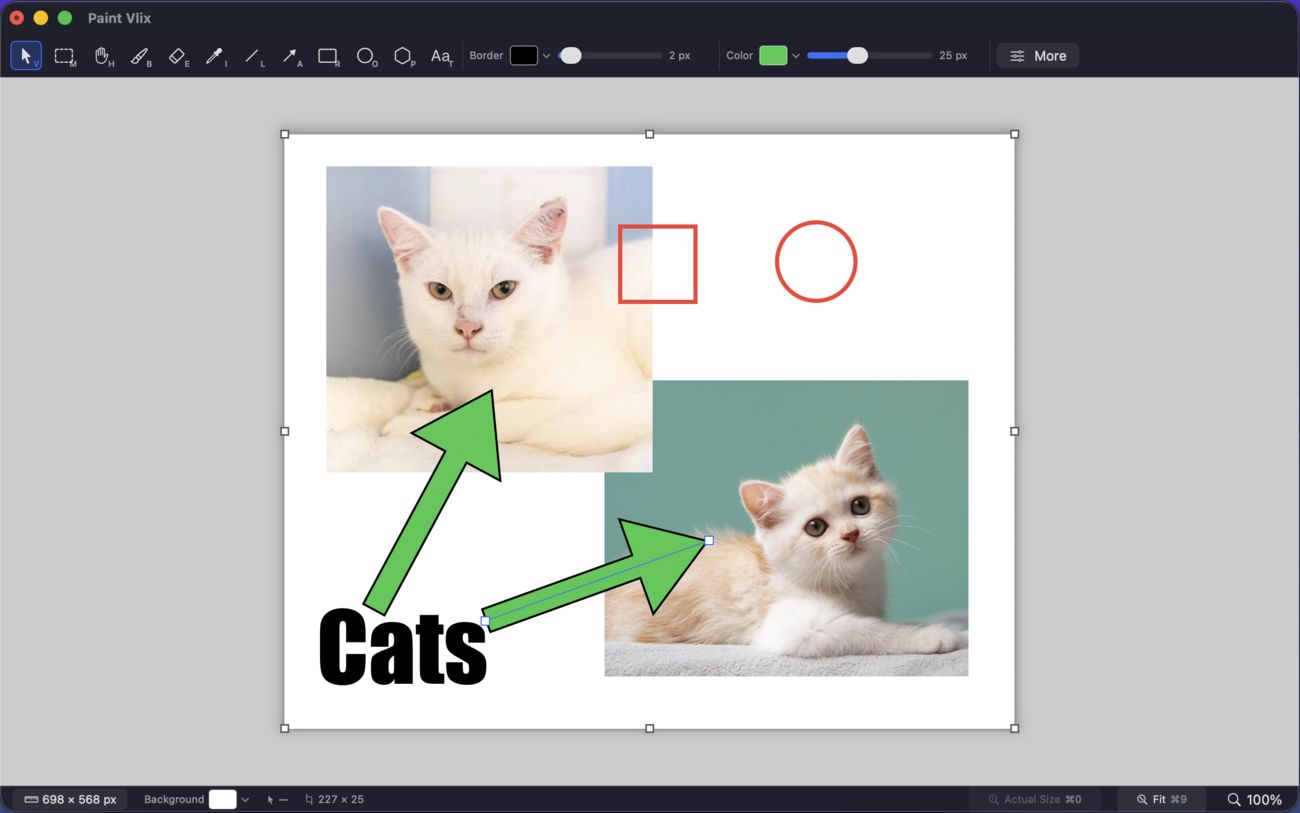
Arrows, boxes, circles, and text over any image. Drop in as many pictures as you like and arrange them on one canvas. Everything you place stays selectable, so an arrow that landed slightly off is a drag away from right.
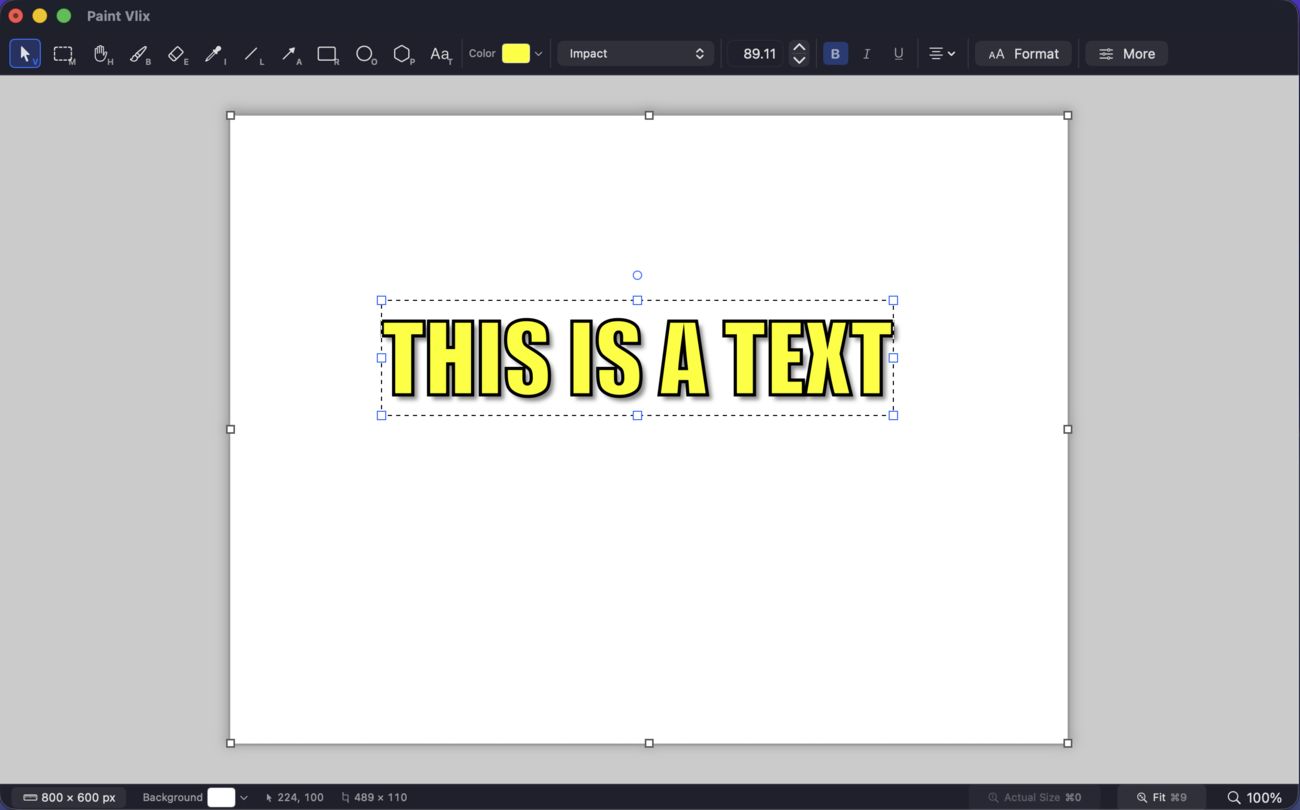
Pick any font on your Mac, set the size precisely, and style it with bold, italic, underline, colour, an outline, and a drop shadow. The text stays text, so you can retype a word later instead of undoing half an hour of work.
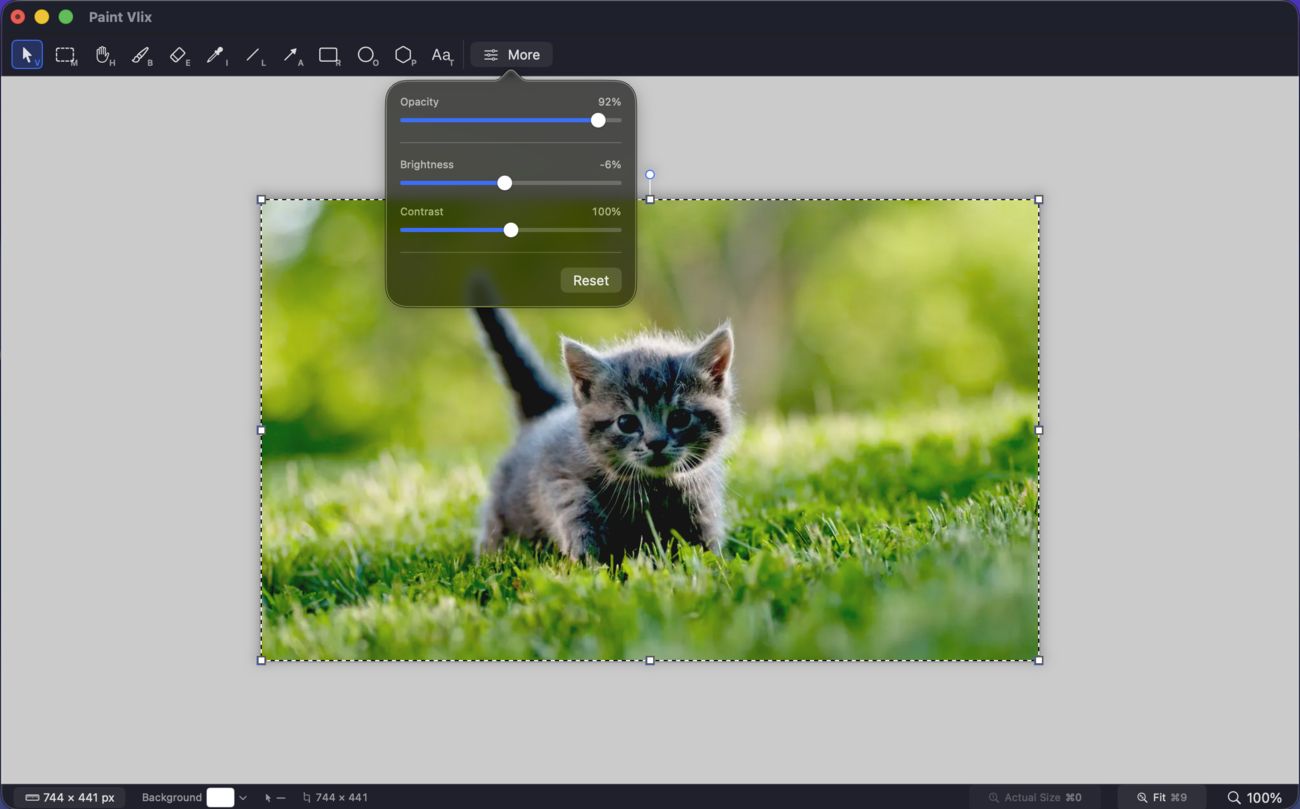
Opacity, brightness, and contrast live behind the More button, one slider each and a Reset when you overdo it. Fade an object into the background, or rescue a photo that came out too dark, without leaving the app.
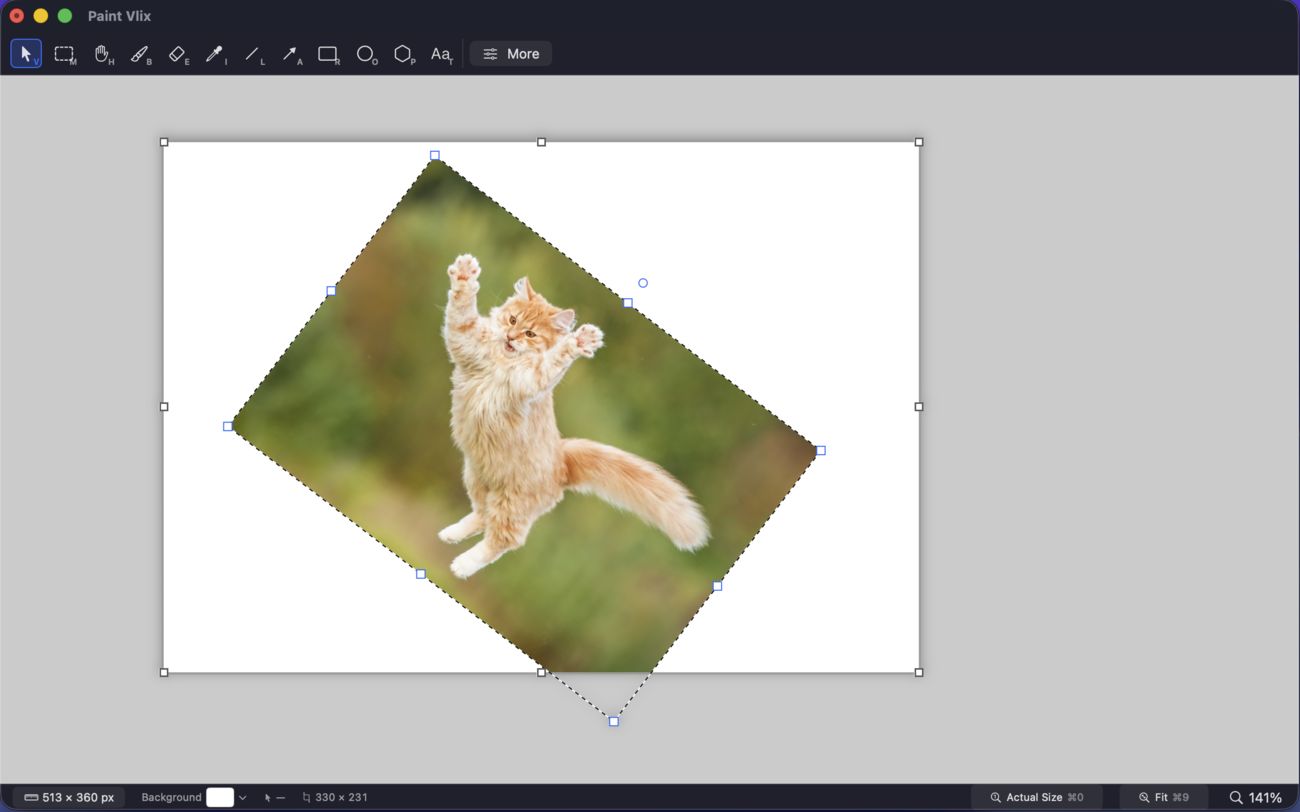
Grab the rotation handle and turn anything to any angle, not just ninety degrees at a time. Move it, resize it, and turn it as often as you like. Nothing is committed until you export, and even then the objects survive.
Yes. It is free on the Mac App Store with no in-app purchases, no subscription, and no account to create. There is no paid tier holding features back, and nothing expires.
That is where it started, and the toolbar will feel familiar if that is what you are looking for. It has grown past it in one important way: instead of painting pixels that are gone the moment you click elsewhere, what you draw stays an object. You can move a shape you added ten minutes ago, restyle it, or delete it, and the image underneath is untouched.
Open PNG, JPEG, and other common image formats. Export to PNG or JPEG with adjustable quality, copy to the clipboard, or print. There is also a native format that keeps every object editable, so you can reopen a markup later and move the arrows around rather than starting again.
Yes, that is the common case and it works the way you would expect. Open the image, mark it up, and save. The app asks once whether to overwrite the original or keep the editable version, remembers your answer, and then stops asking so repeated saves never nag you.
No. There are no layers and no layer panel. Objects simply stack in the order you add them, and clicking the same spot twice steps down through anything underneath, so you can grab a shape hiding behind another without hunting through a list.
A Mac running macOS 13 or later. It is built natively for macOS and fully sandboxed, and the download is around a megabyte, so it installs and launches quickly rather than making you wait.
Practical Mac image-editing tips, from the makers of Paint Vlix