Circle a face, sketch an arrow, sign your name, or just doodle. The quickest way to draw on a photo on a Mac is the free Paint Vlix app, and the built-in Markup tools work too. Here is how to draw on a picture on Mac both ways.
The quick answer: the simplest way is the free Paint Vlix app, which gives you a real pencil and brush with unlimited undo. Prefer built-in tools? Open the photo in Preview, click the Markup button, pick the Sketch or Draw tool, choose a colour, and draw. 
The easiest way: draw in Paint Vlix (free)
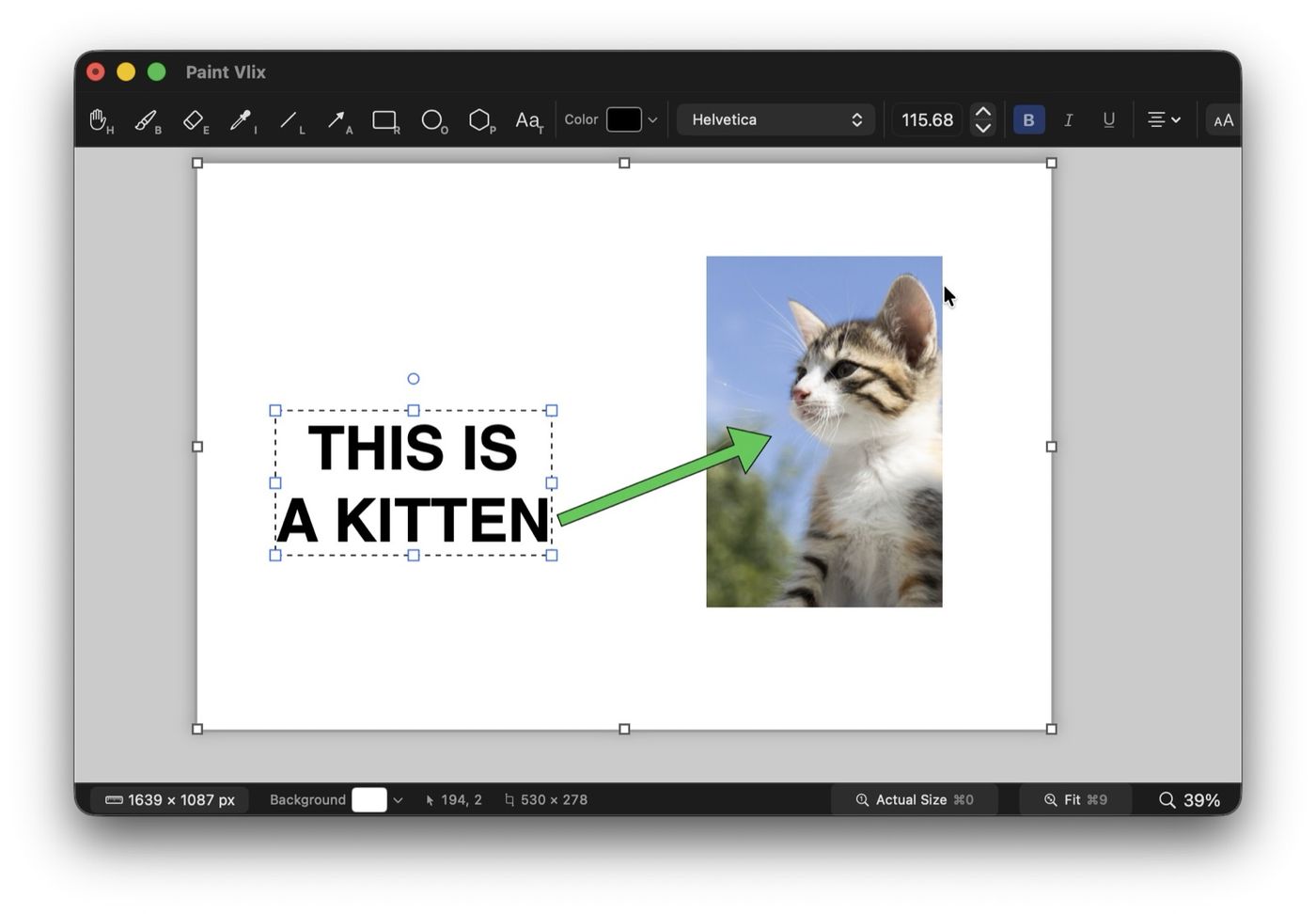
Paint Vlix is a free Mac app built natively in Swift, so it opens instantly. It has a proper pencil and brush, so you draw straight onto the photo, undo without fear, and change colours and thickness as you go.
Screenshot needed. Save as img/paint-vlix/draw-on-photo.png
Paint Vlix with a photo open and clear freehand pencil or brush strokes drawn on it (for example a hand-drawn circle around a subject, or a handwritten note), with the brush or pencil tool selected in the toolbar and a colour picked. The point is to show real freehand drawing, not shapes. Landscape, roughly 1600px wide.
Paint Vlix with a photo open and clear freehand pencil or brush strokes drawn on it (for example a hand-drawn circle around a subject, or a handwritten note), with the brush or pencil tool selected in the toolbar and a colour picked. The point is to show real freehand drawing, not shapes. Landscape, roughly 1600px wide.
- Open the photo in Paint Vlix, or paste it straight from the clipboard.
- Pick the pencil or brush, choose a colour and thickness, and draw.
- Undo anything you like, then export as PNG or JPEG, or copy it to the clipboard.
It is 100% free on the Mac App Store, with no in-app purchases, no subscription, and no account.
How to draw on a picture on Mac with Preview
If you would rather not install anything, Preview is built in, so this needs no download.
- Open the photo in Preview.
- Click the Markup button in the toolbar (the pen tip inside a circle).
- Choose a drawing tool. Sketch smooths your line and offers to snap it into a clean shape; Draw keeps your exact freehand stroke.
- Set the colour and line thickness from the toolbar controls.
- Draw on the photo, then press ⌘S to save, or export a copy to keep the original.
Prefer to draw without even opening Preview? Select the file in Finder, press Space for Quick Look, then click the Markup pen icon at the top. Same tools, one less step.
How to draw on photos on Mac in the Photos app
If the picture lives in your Photos library, double-click it, click Edit, then open the more menu (the three dots) and choose Markup. You get the same pen, shapes, and text, applied right inside your library.
The limit of the built-in tools
The built-in Markup tools are fine for a quick scribble, but the moment you save, your drawing is fused into the photo's pixels. Change your mind about a stroke tomorrow and there is nothing to grab. That is where a real paint app earns its place.
Why Paint Vlix beats Preview for this
Now you have seen both. The reason Paint Vlix feels better for drawing is that every stroke stays its own object, and you get a fuller toolset in the same free app:
- Paint Vlix gives you a real pencil and brush, not a basic sketch tool.
- Unlimited undo lets you experiment on a photo you care about, so you can experiment on a photo you care about.
- Every stroke stays editable, so you can restyle or delete one without redoing the rest.
- Add arrows, boxes, and text alongside your freehand marks.
- Crop and resize the photo in the same window.
- Export the photo anywhere: PNG or JPEG with adjustable quality, copy to the clipboard, or print.
| What you want to do | Paint Vlix | macOS Preview |
|---|---|---|
| Real pencil & brush | ✔ | Basic sketch only |
| Unlimited undo and redo | ✔ | Limited once saved |
| Each stroke stays editable | ✔ | Baked in on save |
| Restyle a stroke after drawing | ✔ | Redo the stroke |
| Add arrows, shapes & text | ✔ | ✔ |
| Crop & resize in the same app | ✔ | Crop only |
| Export PNG, JPEG, clipboard, print | ✔ | A few formats |
| Opens instantly, native, free | ✔ | ✔ |
Which method should you use?
- Real drawing, changing your mind, or protecting the original: Paint Vlix.
- One quick doodle you will never revisit, with no install: Preview or Quick Look.