A screenshot says more when you point at the thing you mean. The quickest way to annotate one on a Mac is the free Paint Vlix app, and the built-in Markup tools work too. Here is each one.
The quick answer: the simplest way is the free Paint Vlix app, where arrows, boxes, and text stay editable until you export. Prefer built-in tools? Take the screenshot, click the thumbnail in the corner to open the built-in editor, then use its shapes, arrow, and text tools. 
The easiest way: annotate in Paint Vlix (free)
Paint Vlix is a free Mac app built natively in Swift, so it opens instantly. Arrows, boxes, and text stay as objects you can move, restyle, or delete at any time, right up until you export. Nothing is baked in by accident.
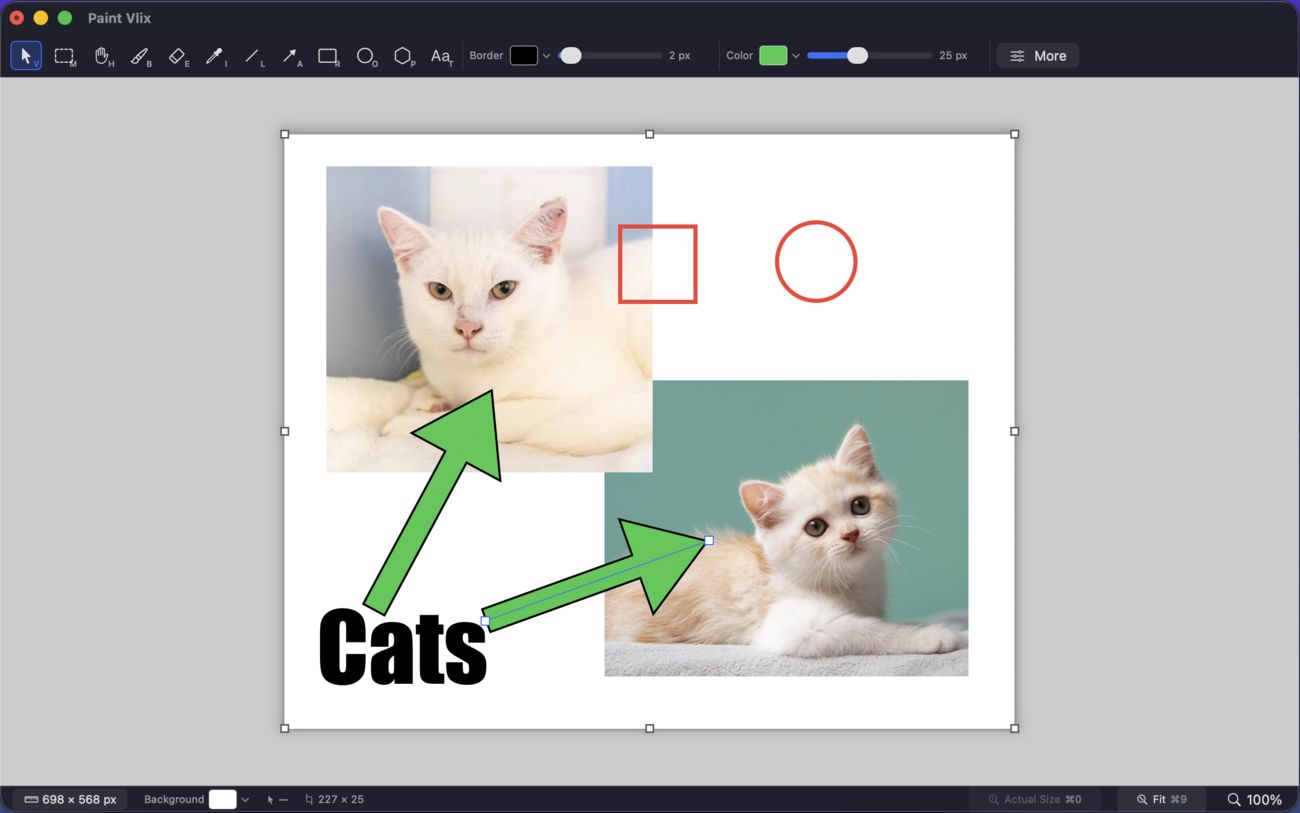
- Open the screenshot in Paint Vlix, or paste it straight from the clipboard.
- Drop on arrows, boxes, circles, and text, and set the colour and thickness.
- Move or restyle anything, then export as PNG or JPEG, or copy it to the clipboard.
It is 100% free on the Mac App Store, with no in-app purchases, no subscription, and no account.
How to annotate a screenshot using macOS Preview
If you would rather not install anything, macOS can mark up a screenshot with the Markup tools built into Preview and the screenshot editor, and the screenshot thumbnail is the fastest way in.
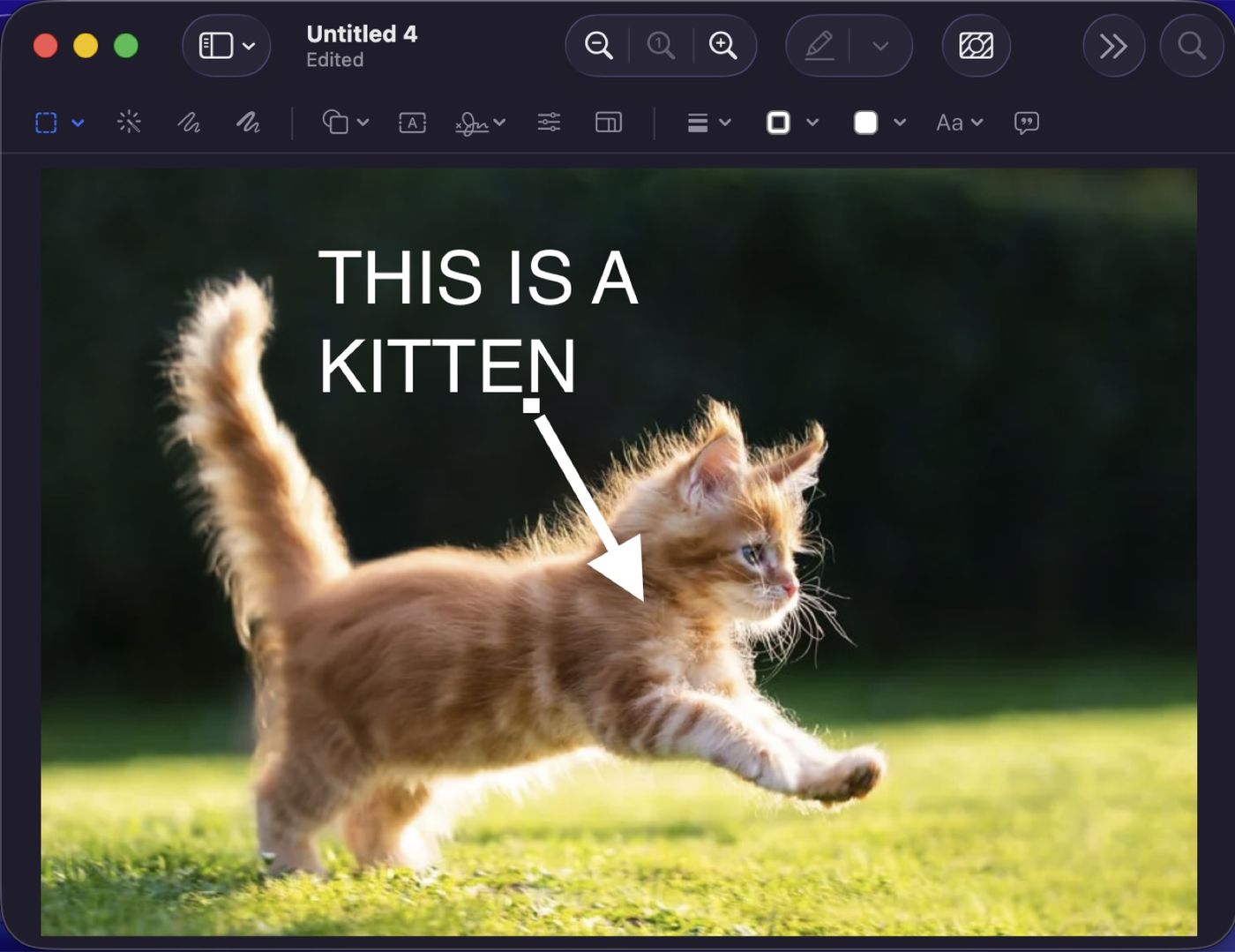
- Take a screenshot (Shift‑⌘‑4 for a region, Shift‑⌘‑3 for the whole screen).
- Click the thumbnail in the corner before it slides away. The built-in editor opens with the Markup tools.
- Use the toolbar: Shapes for rectangles and circles, the line for arrows, the text tool (T) for labels, and the Sketch tool for freehand.
- Set colour and line thickness from the toolbar on the right.
- Click Done, or share it straight from the window.
If the thumbnail already disappeared, open the saved file in Preview and click the Markup button (the pen tip) to get the same tools.
How to add an arrow to a screenshot on Mac
In the Markup toolbar, open the Shapes menu and pick the plain line. A line appears with a small green handle at one end; drag that handle and the line turns into an arrow. Reposition it by dragging either endpoint. It is a little hidden, which is one reason a dedicated arrow tool feels better once you do this often.
The catch with the built-in tools: hard to use, and they bake in
The built-in Markup tools are genuinely handy for a one-off note, but two things wear thin fast. First, they are frustrating to use: the arrow is buried inside the Shapes menu, the colour and thickness controls are scattered across the toolbar, and grabbing something you already placed to nudge or restyle it is fiddly. Second, everything you add is flattened into the image the moment you save, so a slightly-off arrow or a misspelt label leaves you no way back. You undo on the spot, or you redo the whole thing.

Why Paint Vlix beats Preview for this
Now you have seen both. The difference that matters is that Paint Vlix keeps your annotations editable, and gives you a fuller toolset in the same free app:
- Arrows, boxes, and text stay editable, so a misplaced arrow is one drag from right instead of a redo.
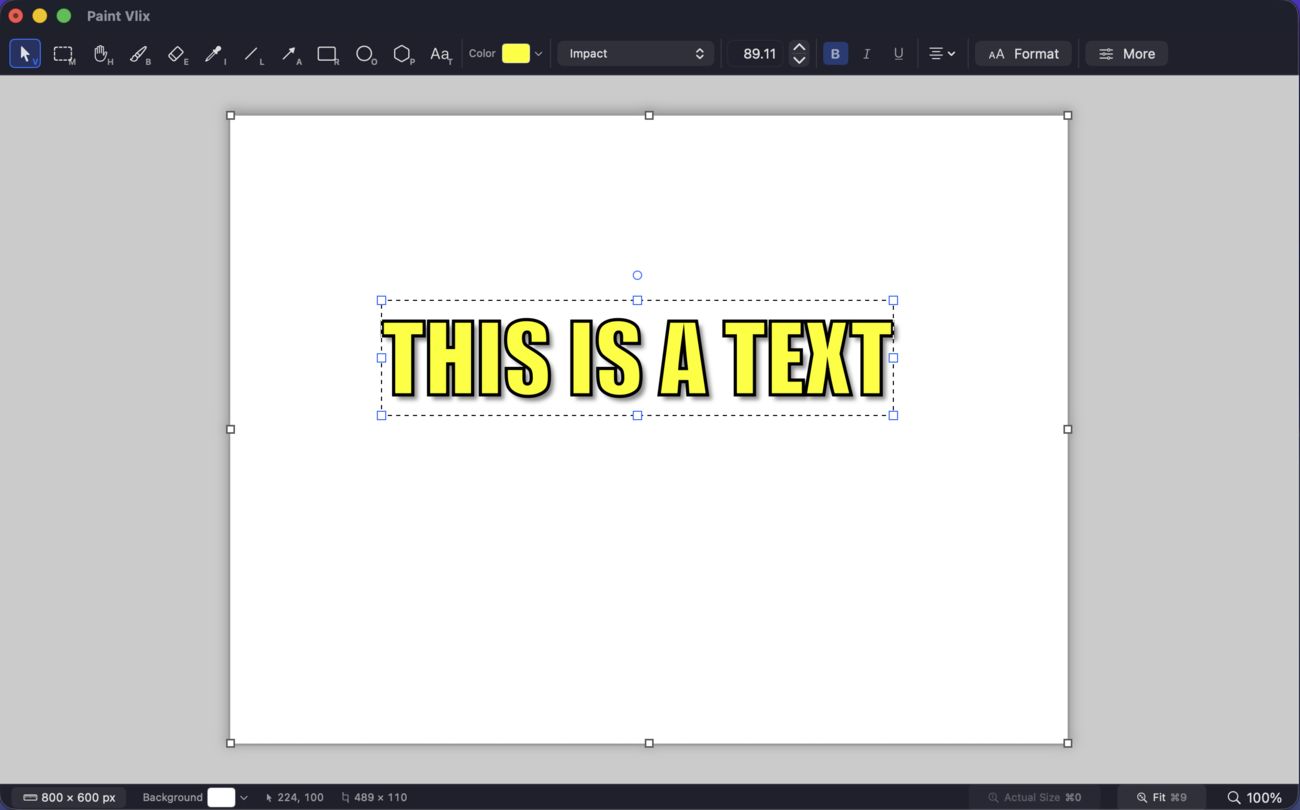
- Text stays editable text you can retype later, with any font, an outline, and a drop shadow, and you can retype it later.
- Draw freehand on the screenshot with a real pencil and brush, with unlimited undo.
- Crop and resize the screenshot in the same window.
- Fix the screenshot's brightness, contrast and opacity with live brightness, contrast, and opacity.
- Export the screenshot anywhere: PNG or JPEG with adjustable quality, copy to the clipboard, or print.
| What you want to do | Paint Vlix | macOS Preview |
|---|---|---|
| Add arrows, shapes & text | ✔ | ✔ |
| Annotations stay editable after saving | ✔ | Baked in on save |
| Retype or restyle text later | ✔ | Changes are final |
| Freehand pencil & brush | ✔ | Basic sketch only |
| Crop & resize in the same app | ✔ | Crop only |
| Brightness, contrast & opacity | ✔ | Basic colour adjust |
| Export PNG, JPEG, clipboard, print | ✔ | A few formats |
| Opens instantly, native, free | ✔ | ✔ |
Which method should you use?
- Annotations you will tweak, restyle, or reuse, or you mark up screenshots all day: Paint Vlix.
- A one-off arrow you will never touch again, with no install: the built-in editor from the thumbnail.